Overview
The Schedule Script feature allows you to automate running scripts at specified times. Once a script is created, you can configure it to run automatically according to your desired schedule. Following are the benefits:
- Consistency: Ensures scripts run reliably and on time.
- Efficiency: Saves time by automating repetitive tasks.
- Flexibility: Supports a wide range of scheduling options to suit different needs.
- Reliability: Reduces the risk of human error in time-sensitive operations.
How to Schedule a Script
If you want to schedule a script to run automatically, follow the below steps:
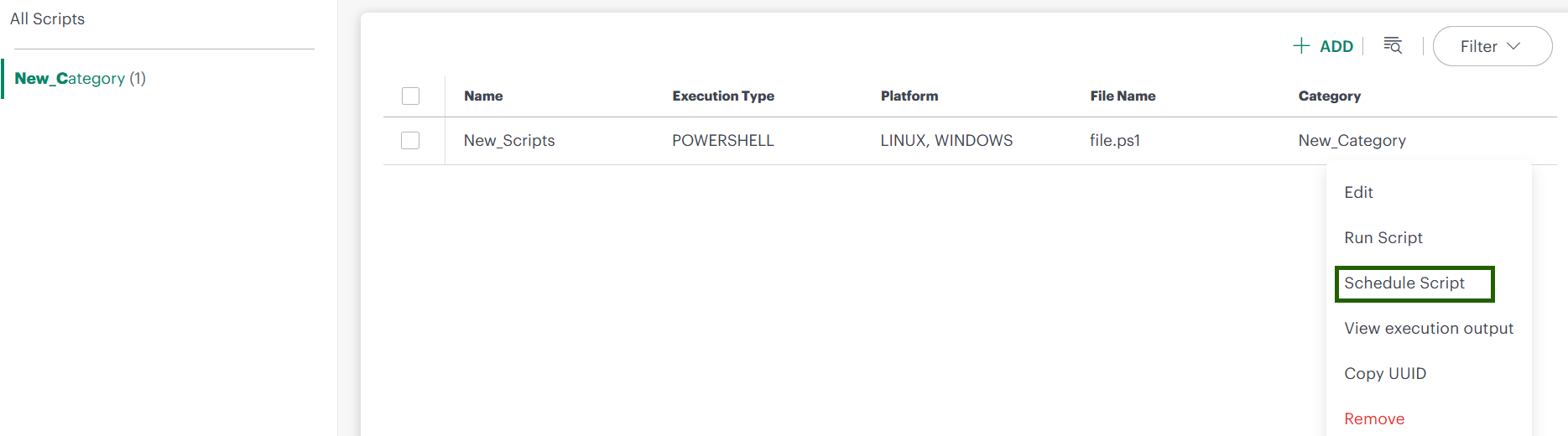
- Hover over the created script and click the ellipsis (…) on the right side.
- Select Schedule from the menu.
- In the Scheduke - Scripts screen, enter the following details:
| Section | Field Name | Description |
|---|---|---|
| General Details | Name | Enter the name for the script. |
| Run | Select User | Select the user who will run the script. Options are "Default User" or "Other User". |
| Resources | Resources | Select the resources on which the script will be run. |
| Schedule | Schedule Details | Choose the schedule details for running the script. Options are "None", "One Time", "Daily", "Weekly", "Monthly". |
| Queue Job | Select the checkbox if you want to queue the job. |
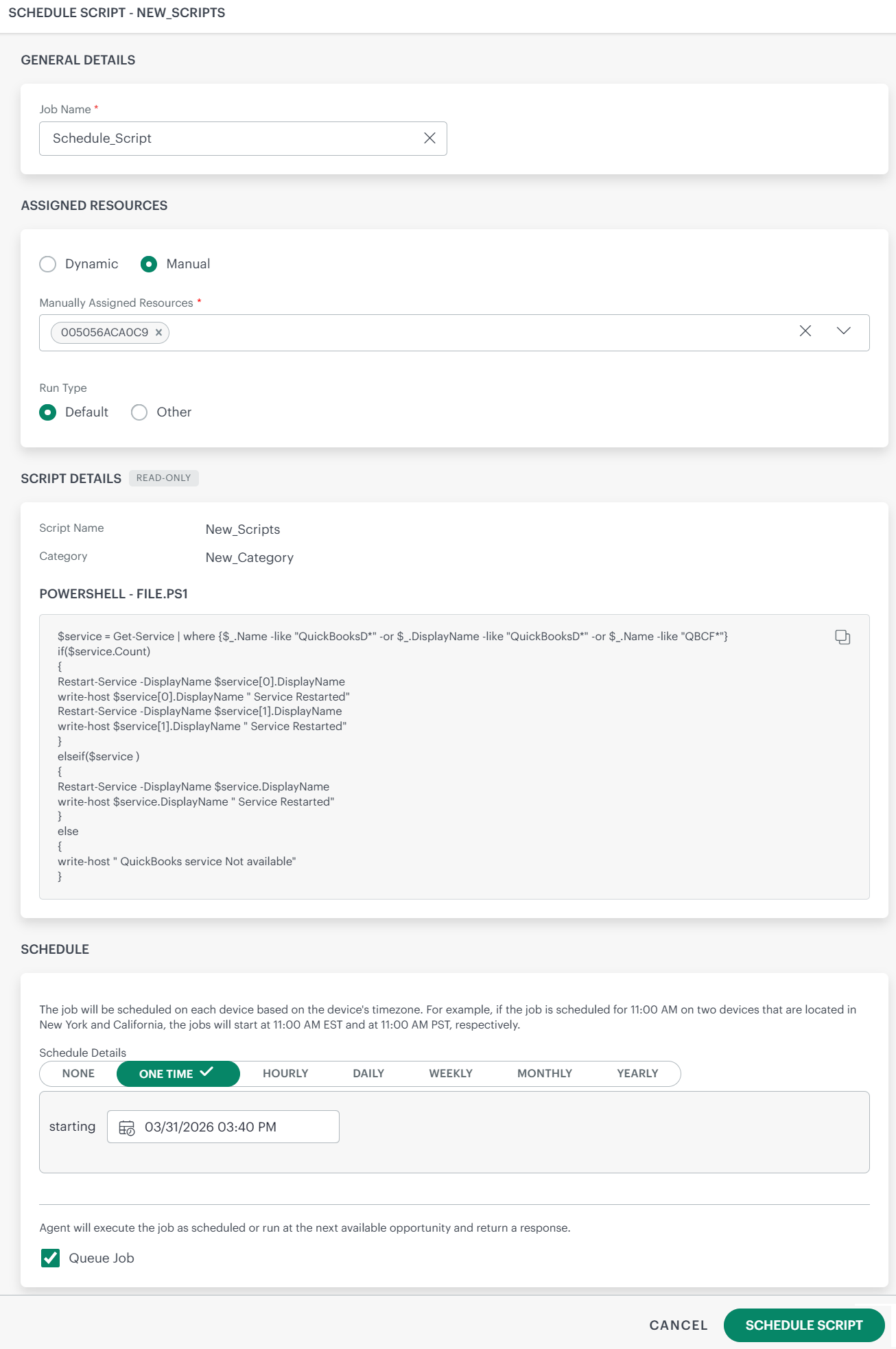
- Once configured, click Schedule Script to save it. This script will triggered as per the scheduled time frame.
About Queue Job Functionality
The Queue Job feature automatically executes specific queued tasks whenever the Agent service is restarted. If jobs are in the queue list and the Agent is in a stopped state at the scheduled execution time, this feature helps ensure that critical operations are not missed during Agent downtime.
When Does the Queue Job Run?
- The Queue Job is triggered only when the agent service is restarted.
- It does not run during regular offline/online events, such as network reconnects.
- If the agent temporarily goes offline and then comes back online without a full service restart, the Queue Job will not execute.
View and Manage the Scheduled Scripts
View the Scheduled Script
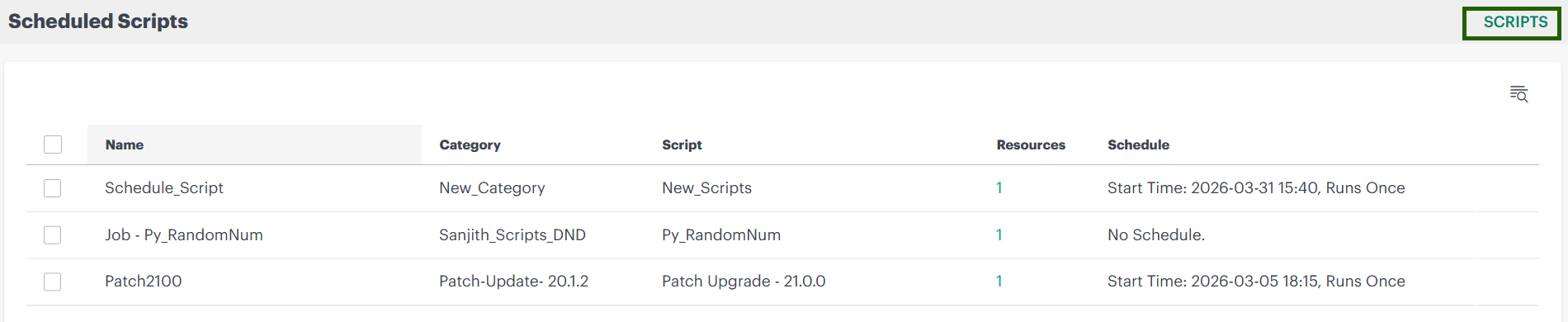
To view the scheduled script, click on the Scheduled Script option on the main landing page.

It will navigate to the Scheduled Scripts home page, where you will the list of all scheduled scripts.
Manage the Scheduled Script
To manage a scheduled script, click the ellipsis (…) on the right to view the available options.
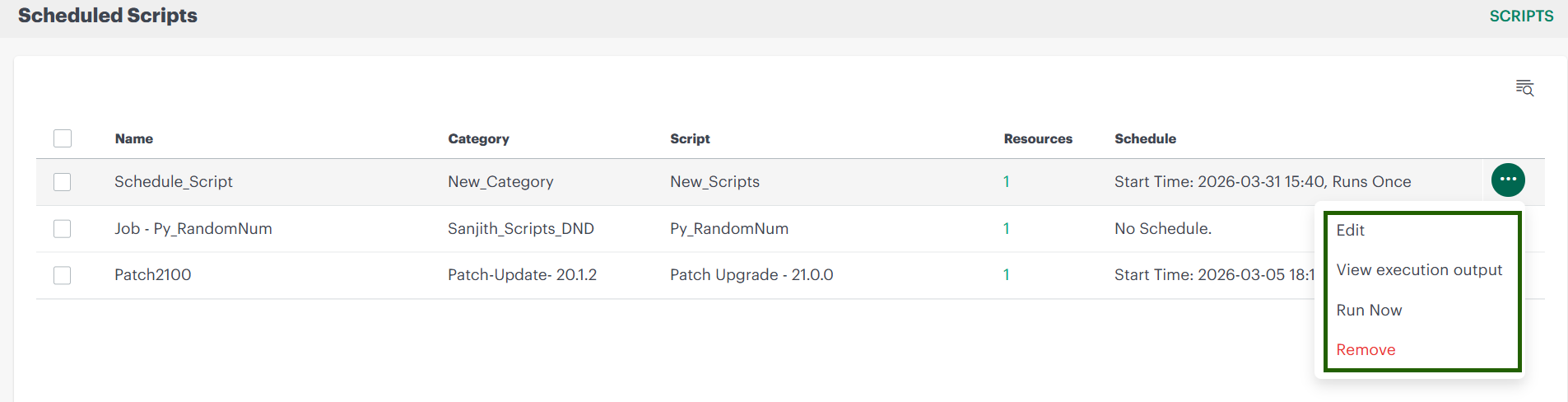
| Action | Description |
|---|---|
| Edit | Modify the schedule or script settings. |
| View Execution Output | View the script logs. You can view the logs for specific year, month, day, or time. You can also filter it based on the Script Status (Success/Failure) or Run Type (On Demand/Schedule) |
| Run Now | Execute the script immediately, regardless of schedule. |
| Remove | Delete the scheduled script. |
To return to the main Scripts listing page from the Scheduled Scripts page, click SCRIPTS in the top‑right corner.