The following permission sets are required to perform the patch activity on OpsRamp.
| Category | Permission Type | Permission Value | Action |
|---|---|---|---|
| Account Administration | Devices | View | To view the Patch Management module in the UI. |
| Automation | Patch Approvals | View |
|
| Automation | Patch Approvals | Manage |
|
Note
A user with Manage permission can also perform the actions available with the View permission.Follow these steps to enable the above permission set:
- Navigate to Setup > Account > Users and Permissions.
- Click the Permissions Sets tab.
- Click + ADD. The Add Permission page is displayed.
- Under Permission Set Details screen, enter a Permission Set Name and short Description.
- Select the above mentioned permissions and click Save.
Refer to the Permission Sets document for more details on obtaining the necessary permissions.
RBAC Enforcement for Patch Management
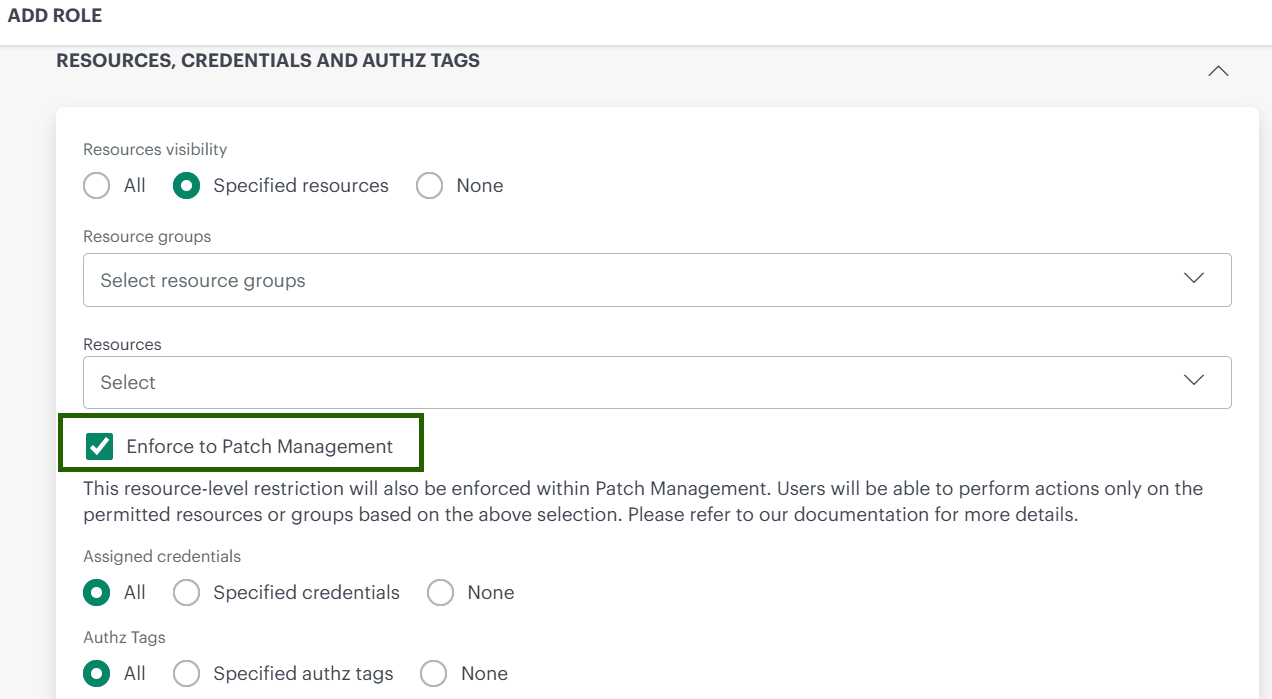
If the resource‑level restriction is enforced in Patch Management, allowing users to perform actions only on the resources or resource groups permitted by their role selection.
How RBAC enforcement works for Patch Management
Once enforced, Patch Management honors the Resources Visibility configuration in a role:
- Users can view patch jobs only for resources included in their role.
- Users can approve, schedule, and execute patch jobs only on those allowed resources.
- Resources outside the assigned scope are hidden or inaccessible in Patch Management workflows, ensuring strict access control.
How to enable RBAC enforcement
To enforce RBAC for Patch Management, configure resource visibility at the role level:
- Navigate to Setup → Account → Users and Permissions → Roles.
- Open the required Role.
- In the Resource Visibility section:
- Select Specified Resources.
- Add the resource groups or individual resources that the role is allowed to manage.
- Enable Enforce to Patch Management checkbox.
- Save the role configuration.